The Hidden Cost of Manual Guides in Ad Production
Every time a producer opens Photoshop to start a new campaign, they spend hours dragging guides into place by hand. Across a nine-format set, that's hundreds of calculations prone to human error — and a single wrong guide corrupts every asset derived from it. There is a better way.
Safe Zones Are Critical Infrastructure. We've Been Building Them By Hand.
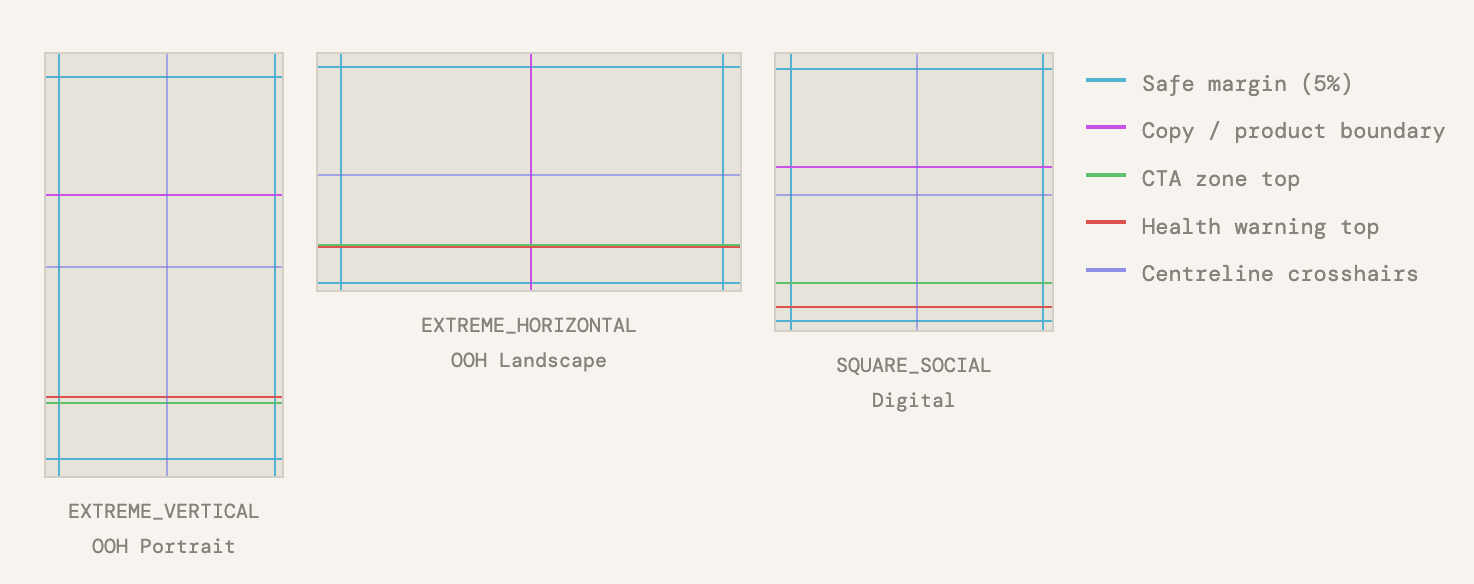
In regulated marketing — tobacco, alcohol, pharmaceutical, financial — the artboard isn't just a canvas. It's a legal document. The health warning must occupy precisely 10% of a digital format, or 20% of any out-of-home surface. The copy must not bleed into the product zone. The CTA must sit inside its lock area. None of this is aesthetic preference — it's compliance.
Despite this, the industry standard practice for setting up these critical zones is still drag-and-drop. A producer opens a new Photoshop artboard, pulls a guide from the ruler, squints at the Info panel, and tries to land on exactly 192 pixels. For nine formats. For every campaign. Every time.
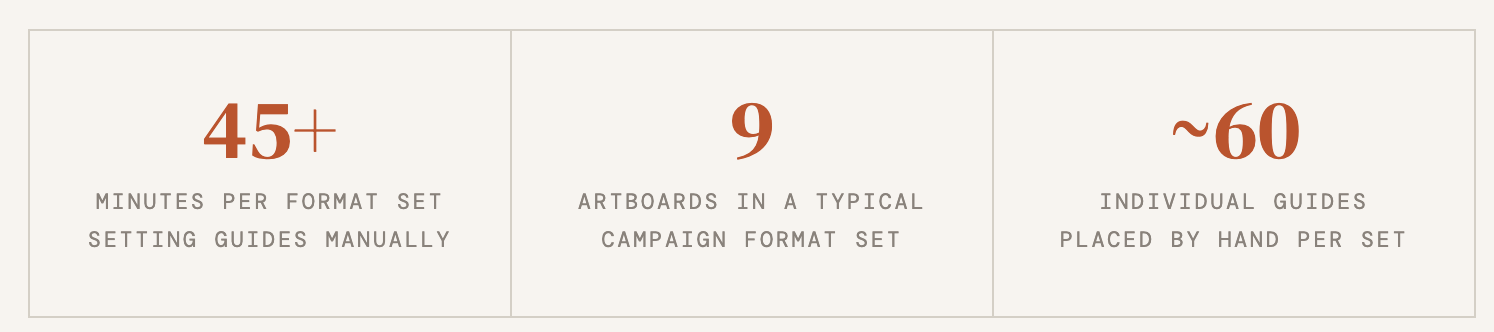
The arithmetic is unforgiving. A nine-format campaign — stories, reels, YouTube pre-roll, square social, portrait social, 6-sheet, 48-sheet, DOOH portrait, DOOH landscape — requires roughly 60 individual guide placements. Each one is a calculation. Each calculation is an opportunity for error. And because Photoshop has no guide validation, a misplaced guide propagates silently through every adaptation, every market version, every language variant derived from that template.

The Compounding Problem: OOH vs Digital
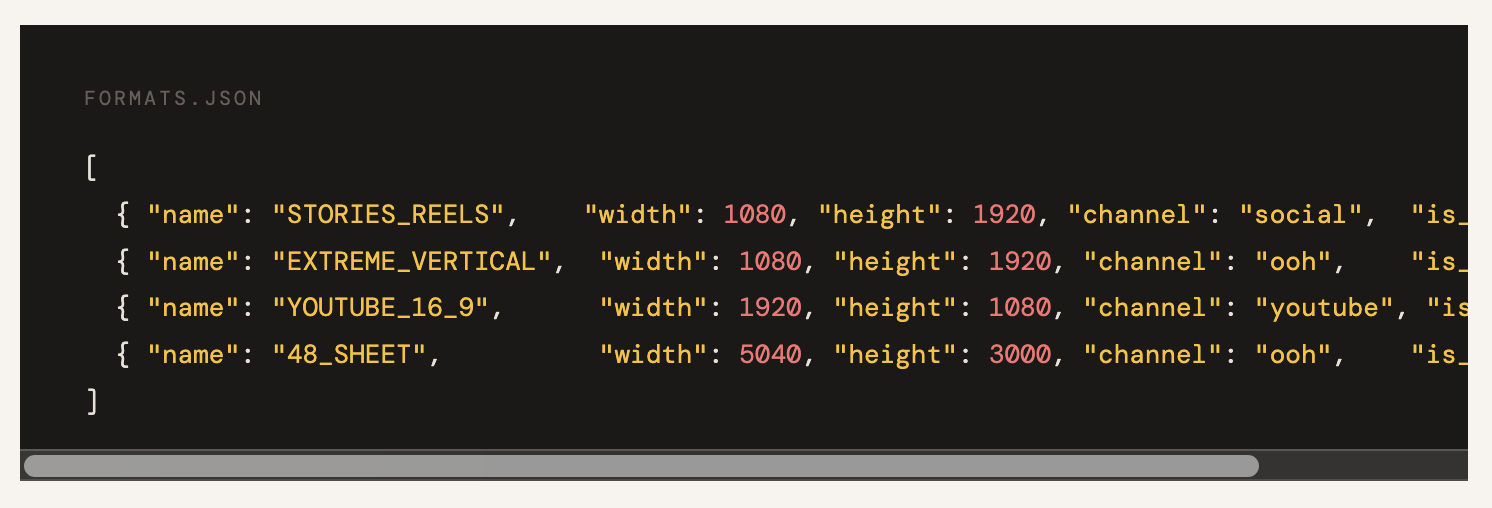
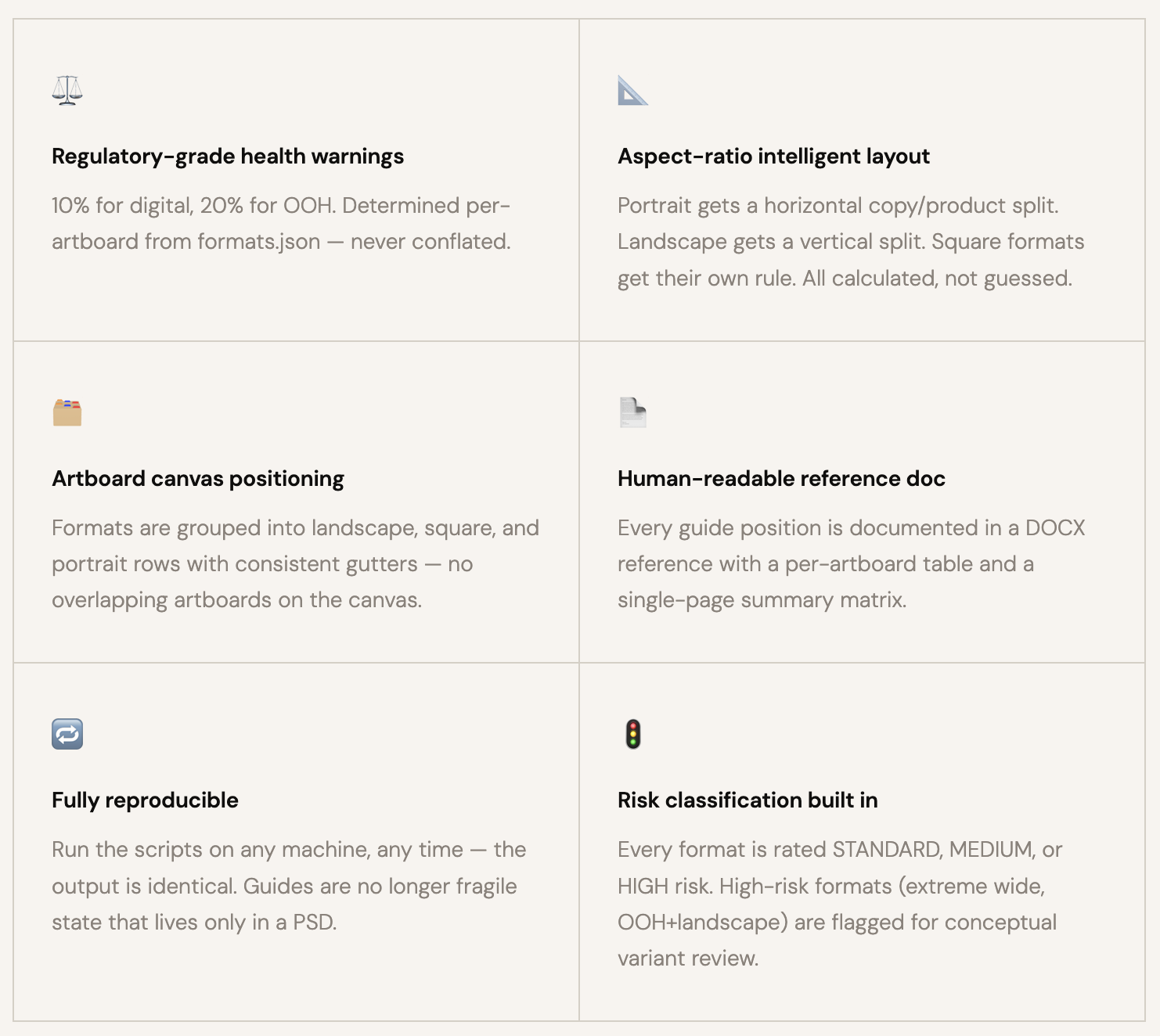
The situation becomes more complex for campaigns that span both digital and out-of-home formats. A 1920×1080 artboard used for YouTube pre-roll requires a 10% health warning — 108 pixels from the bottom. The exact same pixel dimensions used as an OOH landscape screen requires a 20% health warning — 216 pixels. The numbers look similar. The legal requirement is not.
Producers working fast across format sets regularly apply the wrong percentage to the wrong artboard. Not through carelessness — through the cognitive load of tracking which artboards are digital and which are OOH, while simultaneously managing layers, Smart Objects, copy variants, and SKU toggles. The guide system should carry that cognitive load. It doesn't.
The Onboarding Cost Nobody Measures
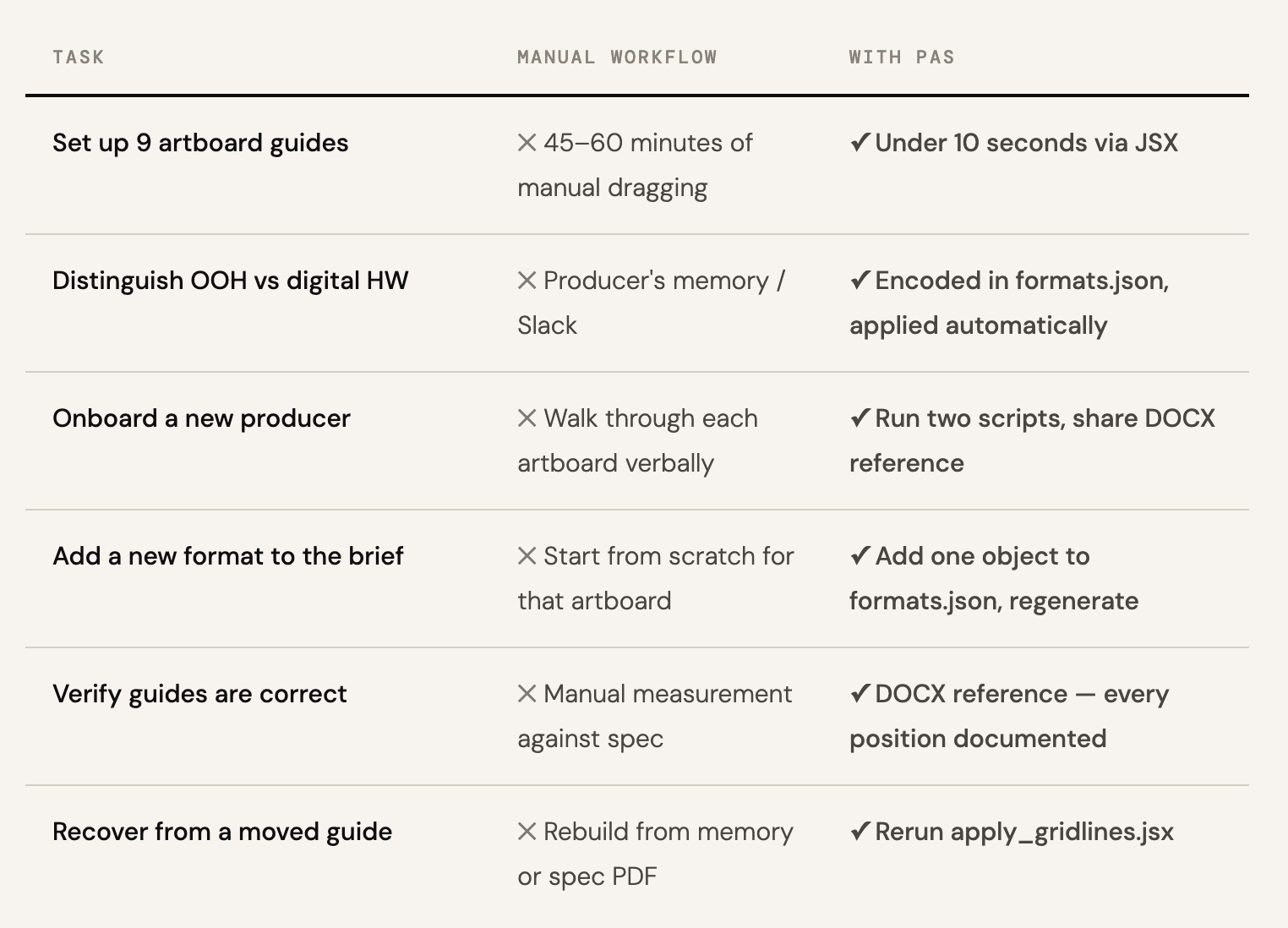
There is a second cost that rarely appears in project post-mortems: onboarding. Every new producer who touches a campaign must learn where the guides should be. This knowledge lives in someone's head, in a Slack message, in a shared PDF that may or may not be current. There is no single, executable, reproducible source of truth for how the artboards are structured. The guides exist in the PSD — until someone accidentally moves one.
Photoshop Artboard Studio:
Guides as Code, Not Craft
Photoshop Artboard Studio (PAS) treats safe-zone guides as a derived output of a format specification — not as manual work. You define your format set once, in a structured formats.json file. PAS does everything else: it calculates every guide position, places guides programmatically into each named artboard, and produces a reference document your entire team can work from.
The result is a system where guides are reproducible, auditable, and correct by construction. If the brief changes — a new format is added, a market requires a different health warning percentage — you update one file and regenerate. The guides update everywhere.
Three Files. One Command. Every Guide Placed Correctly.
PAS is built around a three-component pipeline. Each component does exactly one thing. Together they take a format brief from a JSON specification to a fully-guided Photoshop document in under 10 seconds.
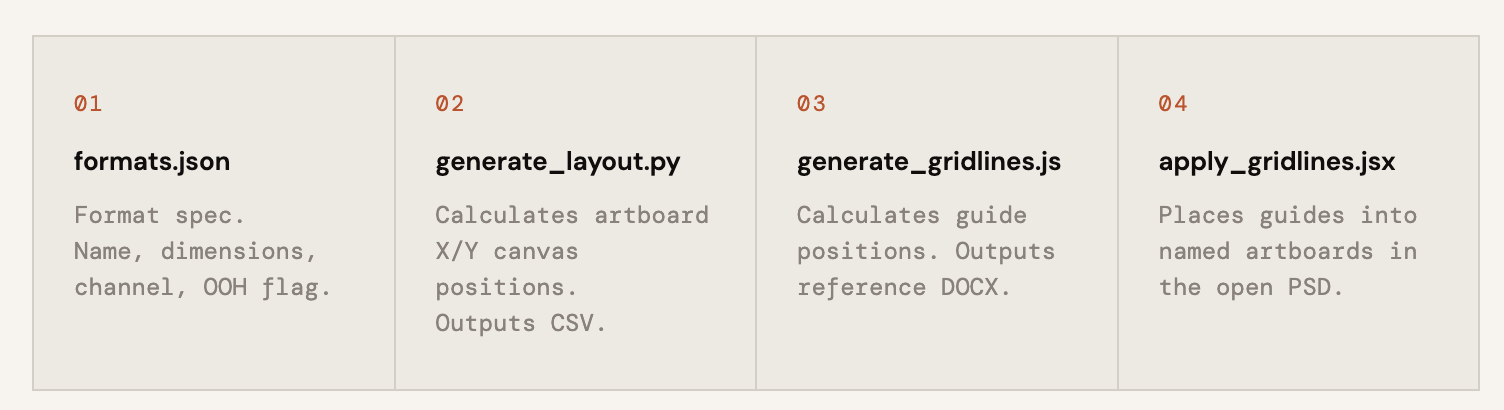
Step 1 — Define Your Formats
Everything begins with formats.json — a plain structured file that specifies each format in your campaign set. The is_ooh flag is the only input PAS needs to determine whether a format gets a 10% or 20% health warning.
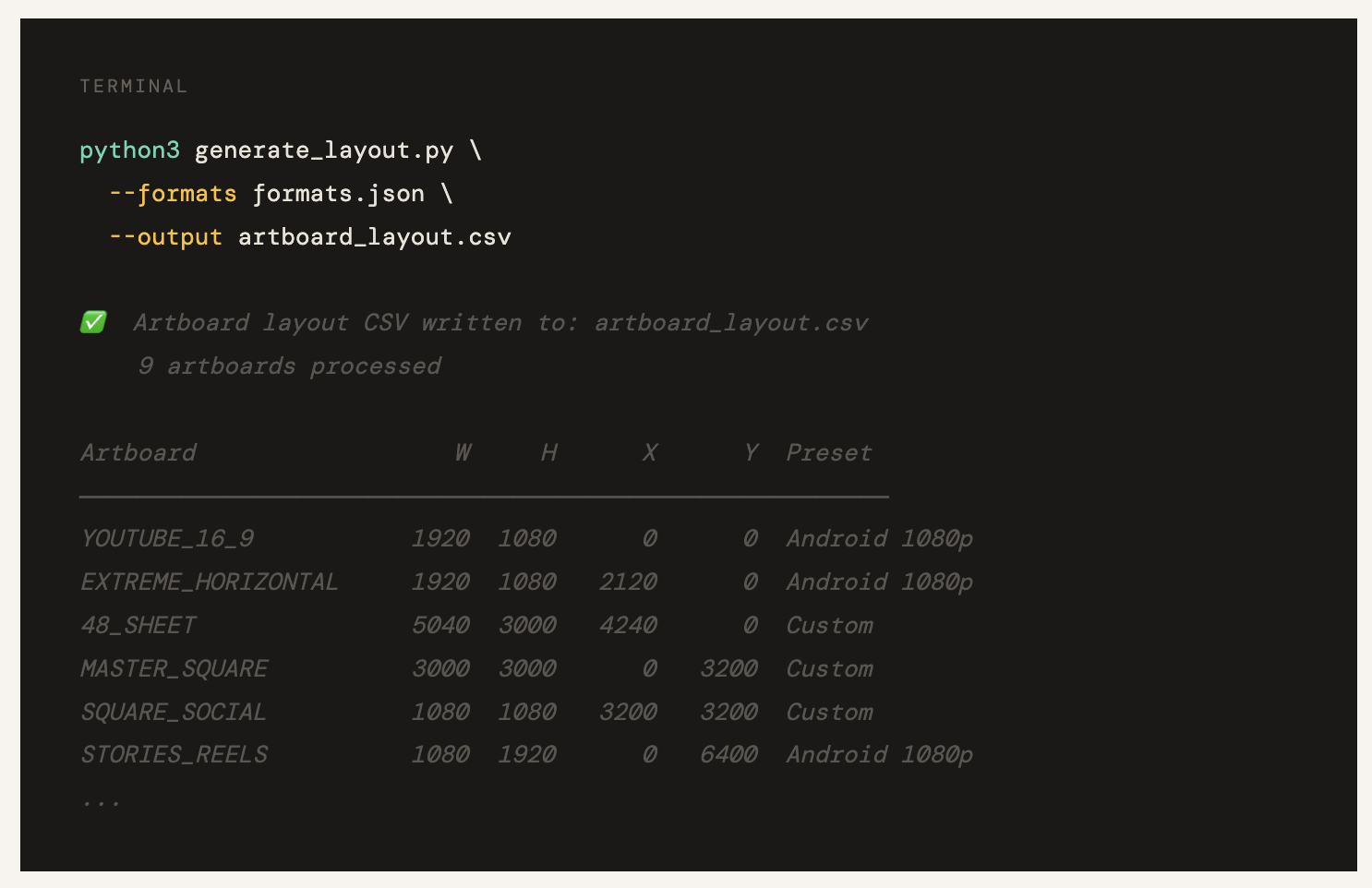
Step 2 — Generate the Artboard Layout
The Python layout script groups artboards by aspect ratio — landscape, square, portrait — and calculates the X/Y canvas position of each artboard using a systematic row-and-column algorithm with consistent 200px gutters. Ultra-wide artboards are automatically placed last in their row to prevent them from obscuring adjacent canvases.
Step 3 — Calculate Every Guide Position
The Node.js gridline script applies the universal safe-zone formula to every artboard, branching on aspect ratio to determine whether a format uses a vertical split (landscape) or horizontal copy/product boundary (portrait/square). It produces a structured DOCX reference document your whole team can use.
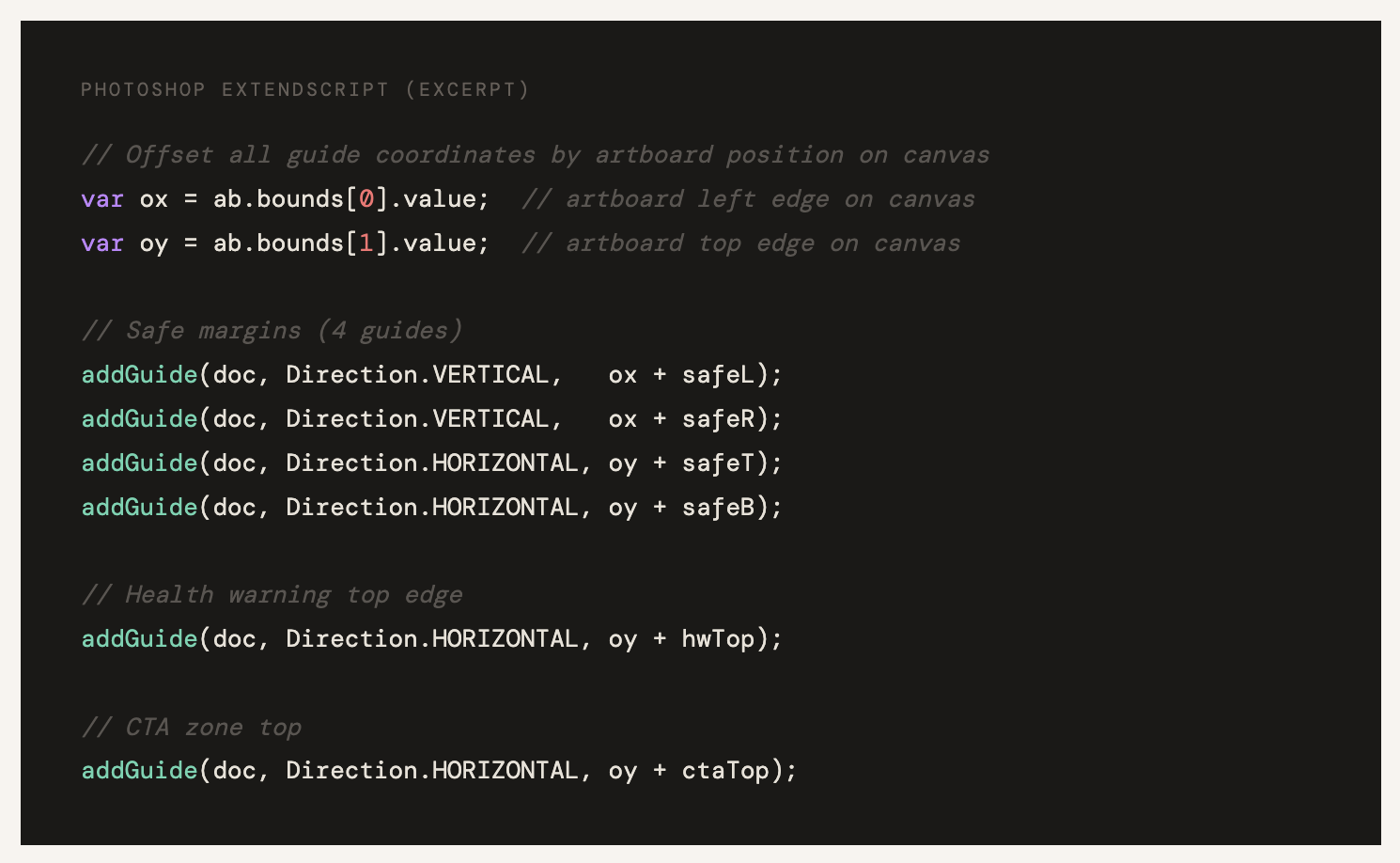
Step 4 — Apply to Photoshop in One Click
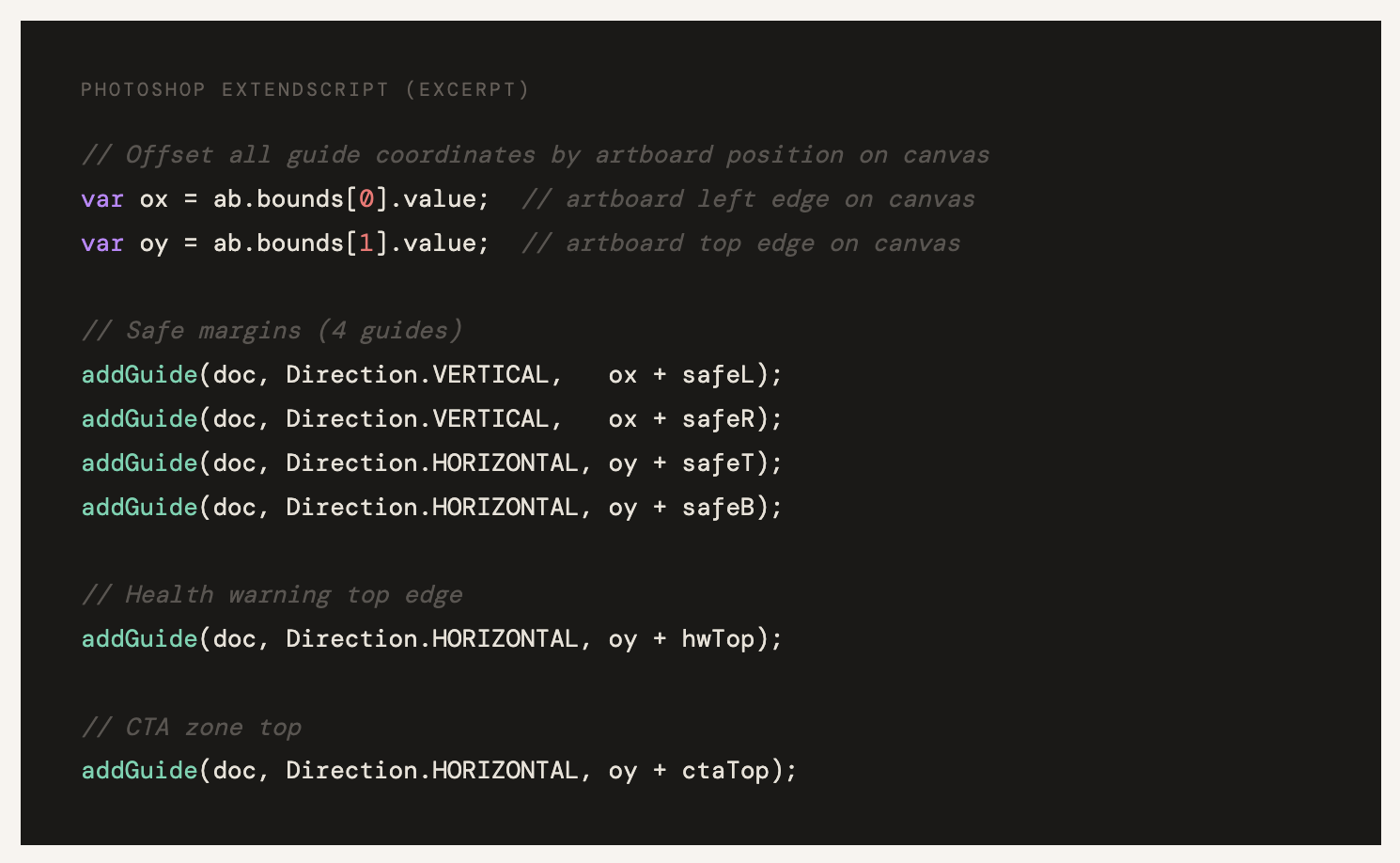
The final component is an ExtendScript JSX file that runs natively inside Photoshop. It reads formats.json from its own folder, finds each named artboard in the open document, and places every calculated guide at its correct pixel coordinate. No ruler dragging. No Info panel squinting. A confirmation dialog reports exactly what was placed and flags any artboard it could not find.
Before & After
What Changes When Guides Are Code
Everything the System Handles Automatically
OmniFormat
One design, every format.
Design once on a master canvas. Set layout rules. Export every size you need — social, ads, print — in one go. Serious tooling, without the intimidation.