
Automatically Send Slack Messages Into NotebookLM
Automatically Send Slack Messages Into NotebookLM
Overview
This guide shows you how to automatically send selected Slack messages into a Google Doc that NotebookLM uses as a source. This keeps NotebookLM continuously updated with relevant team discussions—perfect for research, project notes, or ongoing knowledge capture.
What You Will Build
When someone posts in a specific Slack channel—e.g., #research or #notebooklm-input—the message is automatically appended to a Google Doc. That doc is added as a source inside NotebookLM, giving NotebookLM constant access to new information.
Prerequisites
Slack workspace (ability to install apps)
Google Drive + Google Docs
NotebookLM access
Zapier or Make (Zapier examples provided)
Step-by-Step Instructions
Step 1 — Create a Google Doc for incoming Slack messages
Go to Google Docs.
Create a new document titled:
Slack → NotebookLM InputLeave it blank for now—Zapier will populate it.
Step 2 — Add the Google Doc as a source in NotebookLM
Open NotebookLM.
Create or open a notebook dedicated to this workflow.
Select Add sources → Google Docs.
Choose Slack → NotebookLM Input.
NotebookLM will ingest the document and use it as context.
Step 3 — Create your Slack → Google Docs automation in Zapier
In Zapier, create a new Zap.
Trigger app: Slack
Trigger:
New Message Posted to Channel
Connect Slack and choose the desired channel (e.g.,
#research).Optional but recommended: Add a Filter
Continue only if message contains a keyword like
#nlmor comes from a specific channel.
Step 4 — Append the Slack message into the Google Doc
Add an Action step: Google Docs.
Event: Append Text to Document.
Choose Slack → NotebookLM Input.
Insert a formatted entry, e.g.:
[{{user_name}} in #{{channel_name}} at {{timestamp}}]
{{message_text}}
---
Turn the Zap ON.
Step 5 — Test the integration
Post a message to Slack in your chosen channel.
Confirm it appears in the Google Doc.
Check NotebookLM (you may need to refresh) to see the updated source.
You’re done!
Your NotebookLM notebook now stays updated with curated Slack content, giving you a live research repository.
Article 2: Automatically Deliver NotebookLM Outputs Back Into Slack
Overview
This guide explains how to send NotebookLM outputs—summaries, analyses, answers—into Slack automatically. This is helpful for sharing insights with your team without manually copying text every time.
What You Will Build
A Google Doc will act as the “output bucket” for NotebookLM. Whenever new content is added to this Doc, the automation posts the update to a Slack channel such as #summaries.
Prerequisites
Slack workspace
Google Docs
NotebookLM
Zapier or Make (examples use Zapier)
Step-by-Step Instructions
Step 1 — Create a Google Doc for NotebookLM outputs
In Google Docs, create a document titled:
NotebookLM → Slack SummariesThis doc is where you will paste or generate NotebookLM summaries.
Step 2 — Connect this document to Zapier
Visit Zapier.
Create a new Zap.
Trigger app: Google Docs
Choose either:
New Document in Folder (recommended if you want to create a fresh doc for each summary)
ORNew or Updated Document (if using one doc repeatedly)
Step 3 — Add a Trigger Folder (optional)
If you prefer the “one summary = one doc” model:
Create a Google Drive folder:
NotebookLM ExportsSet NotebookLM outputs or your pasted summaries to land here.
Set Zapier’s trigger to:
New Document in Folder → NotebookLM Exports
Step 4 — Configure the Slack action step
Add an Action step: Slack
Event: Send Channel Message
Choose a channel like
#nlm-summariesor#research-updates.Add a simple message template, for example:
📘 New NotebookLM Summary Added
Title: {{doc_title}}

Excerpt:
{{doc_content_1000_chars}}

(See full summary in the linked document.)
Turn the Zap ON.
Step 5 — Test the workflow
Generate a summary in NotebookLM.
Paste it into your output Doc or create a new one in the “Exports” folder.
Zapier should instantly send the excerpt and link to Slack.
Done!
Your team will now receive NotebookLM insights automatically—keeping everyone aligned and informed.
Article 3: Build an Interactive Q&A Bot in Slack That Talks to NotebookLM Sources
Overview
This article walks you through creating an interactive Slack bot that answers questions using the same documents and notes used in NotebookLM. NotebookLM doesn't yet expose a direct public API, so the bot uses Google Drive documents + Gemini model API to replicate NotebookLM-style reasoning.
This gives you a powerful workflow:
Ask Slack → Bot reads your Drive docs → Gemini answers using those sources → Replies in Slack
What You Will Build
A Slack bot you can message or @mention.
It reads the question.
It retrieves relevant content from Google Docs (the same sources you use in NotebookLM).
It uses Google Gemini (AI Studio or Vertex) to generate a grounded answer.
It replies directly in Slack threads.
Prerequisites
Slack workspace admin access
Google Cloud project with:
Gemini API enabled
OAuth credentials
Google Drive access
Node.js or Python environment
Your NotebookLM "source documents" stored in Google Drive
Step-by-Step Instructions
Step 1 — Prepare your Knowledge Sources
NotebookLM uses Drive documents as sources.
Your bot will too.
Place your research notes, meeting notes, PDFs, docs, etc. in a folder like:
NotebookLM SourcesMake sure your service account or OAuth key can read these files.
Step 2 — Create the Slack Bot
Go to api.slack.com/apps → Create New App.
Choose From scratch.
Add Bot User.
Add OAuth scopes:
chat:writeapp_mentions:readchannels:historyorim:history(depending on where you want questions asked)
Install app to workspace.
Note your:
Bot User OAuth Token
Signing Secret
Step 3 — Connect your bot to Slack events
Enable Event Subscriptions:
Turn Event Subscriptions ON.
Add Request URL (your server endpoint).
Subscribe to:
app_mentionoptionally
message.channels
Save and reinstall the app if prompted.
Step 4 — Write your bot logic (high-level)
Bot Flow
User sends a message like:
"@notebookbot summarize the latest notes"Your backend receives the
app_mentionevent.It extracts the text after the bot name—this becomes the query.
Backend fetches relevant documents from your Drive folder:
Use Drive API: search-by-folder
Convert docs to text (Docs API or PDF-to-text extraction).
Call Gemini model:
Provide the query + extracted text
Prompt Gemini to cite sources and stay grounded
Send the answer back to Slack using
chat.postMessage.
Step 5 — Optional Enhancements
Threaded replies so the bot answers under the original question
Keyword routing (e.g., “summarize”, “search”, “compare”)
Caching of Drive files for speed
Summaries stored back into NotebookLM folder
Step 6 — Deploy your bot
You can deploy to:
Google Cloud Run
Heroku
Railway
AWS Lambda
Vercel
Make sure Slack’s Event Subscriptions are updated with your final URL.
You Now Have an Interactive Q&A Interface
Your team can now ask:
@notebookbot summarize last week’s meeting@notebookbot find all insights about customer pain points@notebookbot compare the three product proposals
The bot will use the same sources that power NotebookLM—bringing research and analysis directly into Slack.
I paired NotebookLM with Slack to streamline my workflow, and I didn’t expect to love it this much
NotebookLM, which is Google's AI-powered research assistant, is one of the few AI tools that has earned a permanent spot in my daily routine. Though I do use the tool for my work-related tasks here and there, I'd be lying if I said my main use isn’t still studying. Given how often I use NotebookLM, and the fact that work makes up a significant chunk of my day, it only makes sense to find ways to fit it into my professional workflow too.
Lately, I've been pairing the AI tool with other productivity tools I use, like Perplexity, Excel, Apple Notes, and more. Then it hit me: I've been pairing NotebookLM with just about everything (even tools I don't necessarily open every day), but I somehow never thought to pair it with the one tool I open and rely on every single day: Slack.
I use the communication platform to connect with colleagues from all over the world, across all the teams I contribute to, and it's the one place where everything from quick updates to major project discussions happens. So, I did exactly that: I paired NotebookLM with Slack to find out if integrating my go-to AI tool with my most-used communication app could actually make a difference.
NotebookLM helps break down messy conversations into clear takeaways
From Threads to takeaways
NotebookLM has a lot of great features, but my favorite has always been its source-grounded nature. Like other AI chatbots, you can ask NotebookLM any questions you may have. But unlike most, it only pulls information from the documents you've added. This means its responses stay relevant, accurate, and rooted in your own material. I use this feature all the time to revisit Slack conversations and make sense of longer threads without having to read through every message myself.

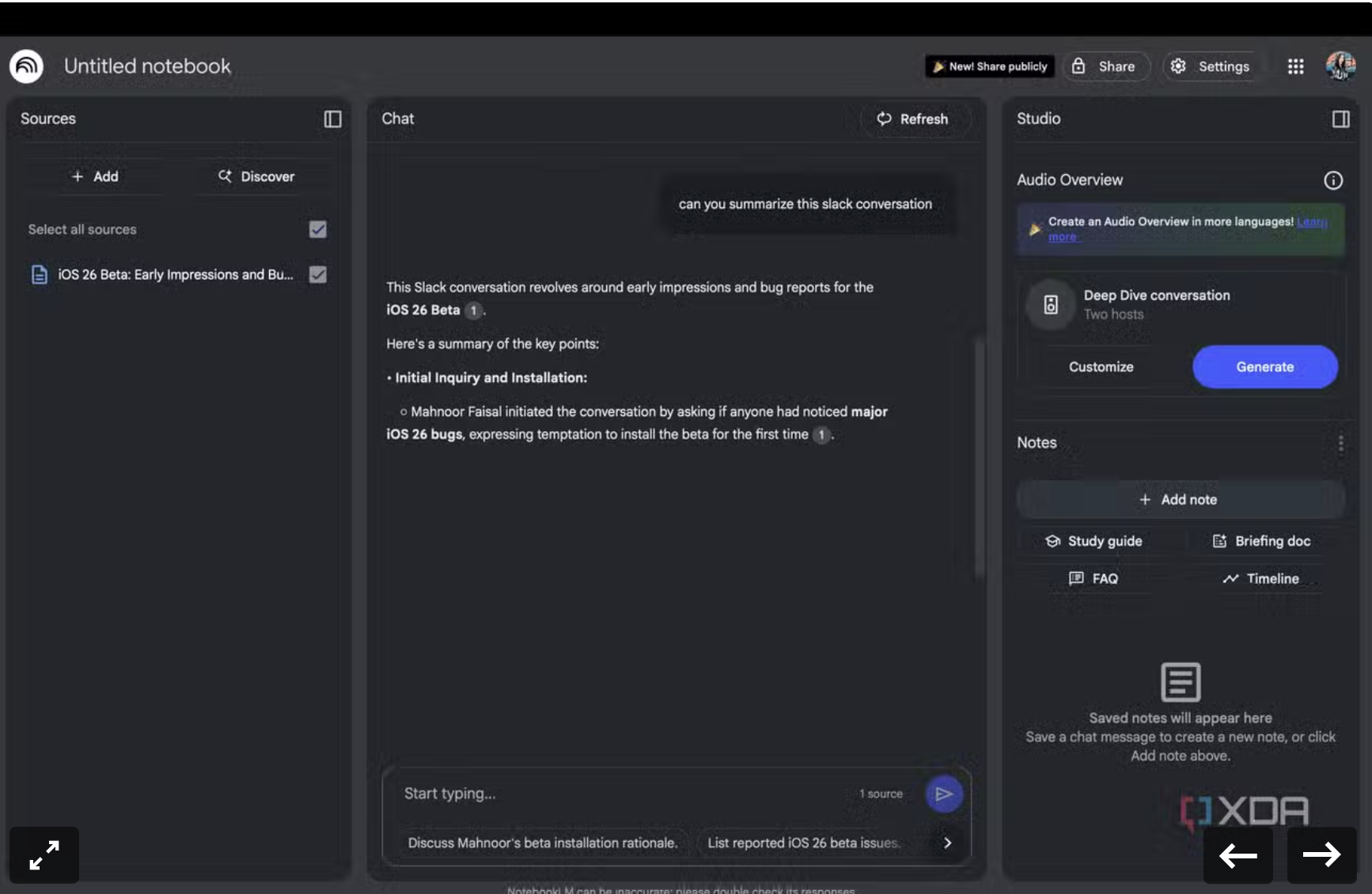
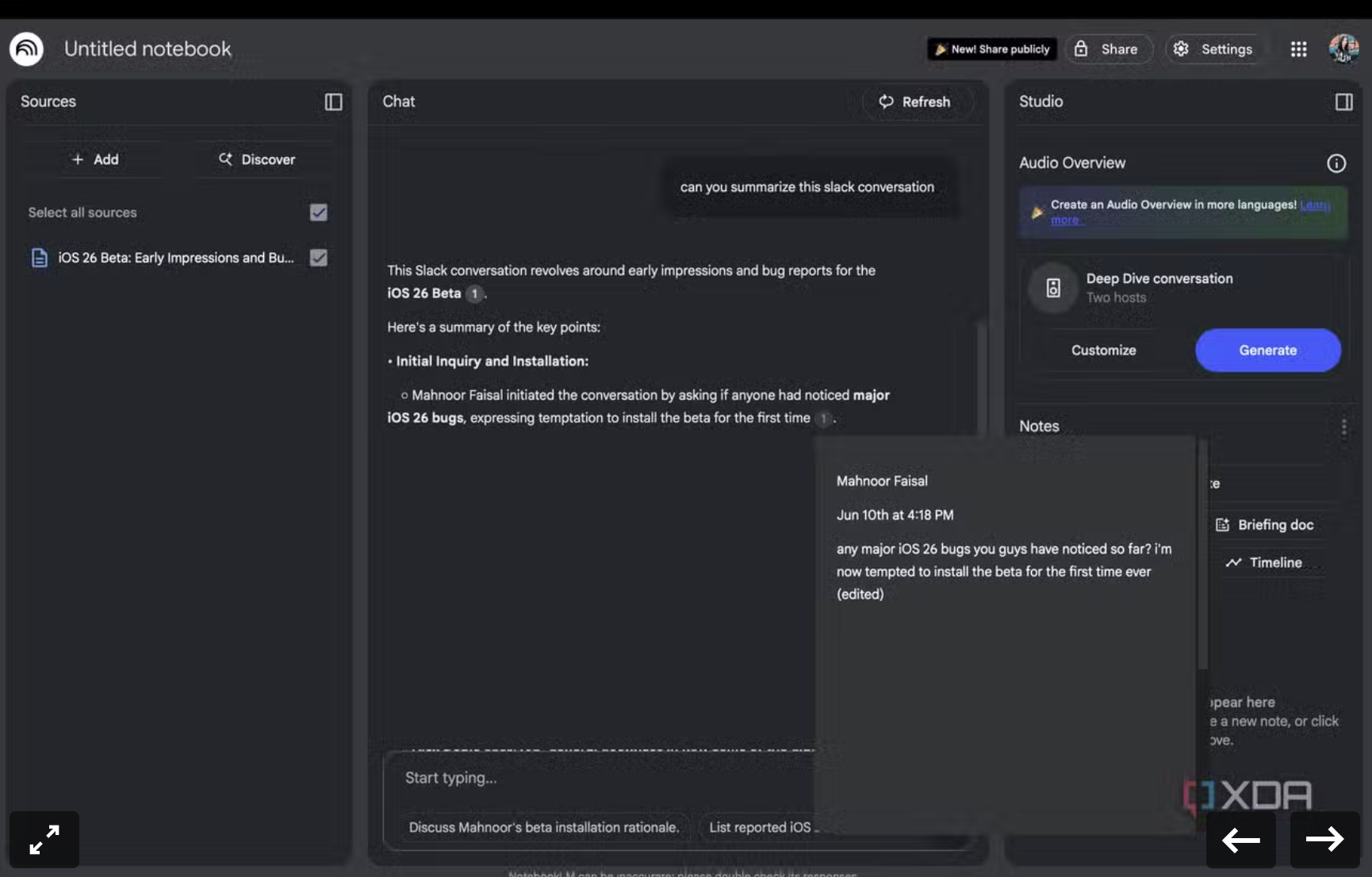

NotebookLM helps me revisit what was actually said in Slack huddles
Making sense of what I missed
Though most of the calls I have throughout the week are on Google Meet, I attend a fair number on Slack Huddles too. While Gemini makes taking meeting notes on the former incredibly easy, things aren't as simple with the latter. Slack has an AI Huddle Notes feature too, but it can only be used if a workspace owner or admin has enabled Slack AI for the workspace. Unfortunately, this isn't the case for any of the workspaces I'm in. And since I'm not an admin in any of them either, I can't turn it on myself.
I haven’t been able to find a solid AI tool that works directly within Slack Huddles, so for now, I rely on workarounds. What I’ve been doing lately is recording the meeting to get a transcript. I then upload the transcript to NotebookLM, where I can ask it to make meeting notes, summarize the discussion, or simply pull out action items.
Again, since NotebookLM is source-grounded, it'll only refer to the transcript I provided to answer any queries I may have. It’s not a perfect setup, but given the limitations, it’s been a reliable and surprisingly efficient way to turn Slack Huddles into something I can revisit and act on.
Sometimes, I rely on NotebookLM to help distill long updates
NotebookLM comes in handy the other way around too
Given how fast-paced my work can be at times, there are moments when I want to quickly get the gist of something before passing it along. Maybe it's a lengthy press release that doesn't seem to end, or multiple articles I'm trying to find a pattern across. In those cases, I upload them to NotebookLM and ask it to break things down. Sometimes, I might simply ask it to highlight recurring themes, pull out the most important stats, summarize the key specs, or tell me the “wow” factor of the sources I provided. It gives me peace of mind that I’m not missing anything major before I pass it along to a team or editor.
Since I’m usually relaying the message further, I just can’t send something ahead without vetting it myself. AI has the habit of hallucinating after all, and you can never be too careful. Thankfully, NotebookLM includes citations right next to any claims it makes, and hovering over them shows you the exact part of the transcript it pulled the information from. This makes it so much easier to double-check what was said, especially when reviewing complex documents. It’s a huge time-saver, especially when I’m juggling multiple pieces of content and need to extract the essentials fast.
This pairing turned out better than I thought
I'll be honest — I had my doubts about pairing Slack and NotebookLM. Unlike with Perplexity, Apple Notes, and the other tools I've paired with NotebookLM, pairing Slack with it was a much different experience. But all in all, I'm glad I gave it a shot, because it's changed my workflow in small but meaningful ways.