
Designing a Multi-Format Campaign Template in Photoshop Using Artboards
Modern marketing campaigns rarely exist in a single format. A single concept often needs to appear across social media posts, video thumbnails, digital displays, posters, and billboards. Managing these formats individually can quickly become messy and inefficient.
One of the most effective ways to handle this workflow is by building a multi-artboard Photoshop template. This approach allows designers to keep all variations of a design inside a single document while maintaining consistent layout structure, copy placement, and brand styling.
This article explains how a structured artboard system works, why it improves production efficiency, and how the layout in your infographic organizes multiple design formats inside one Photoshop file.
Why Use Artboards for Multi-Format Design
Artboards in Photoshop allow designers to create multiple canvases inside a single PSD. Each artboard can have its own size, orientation, and export settings.
For campaigns that require many formats, artboards provide several benefits:
Centralized design management
Instead of maintaining separate PSD files for every format, everything lives in one document.
Consistent layout system
Shared elements like product images, headlines, brand logos, and backgrounds can be reused across artboards.
Faster iteration
Updating a design element in one artboard makes it easier to adapt it to the others.
Simplified exporting
Photoshop can export each artboard as a separate file automatically.
Overview of the Artboard System
The infographic shows a structured artboard layout designed for marketing and advertising assets. Each artboard represents a specific format commonly used in digital and print campaigns.
The system includes nine artboards:
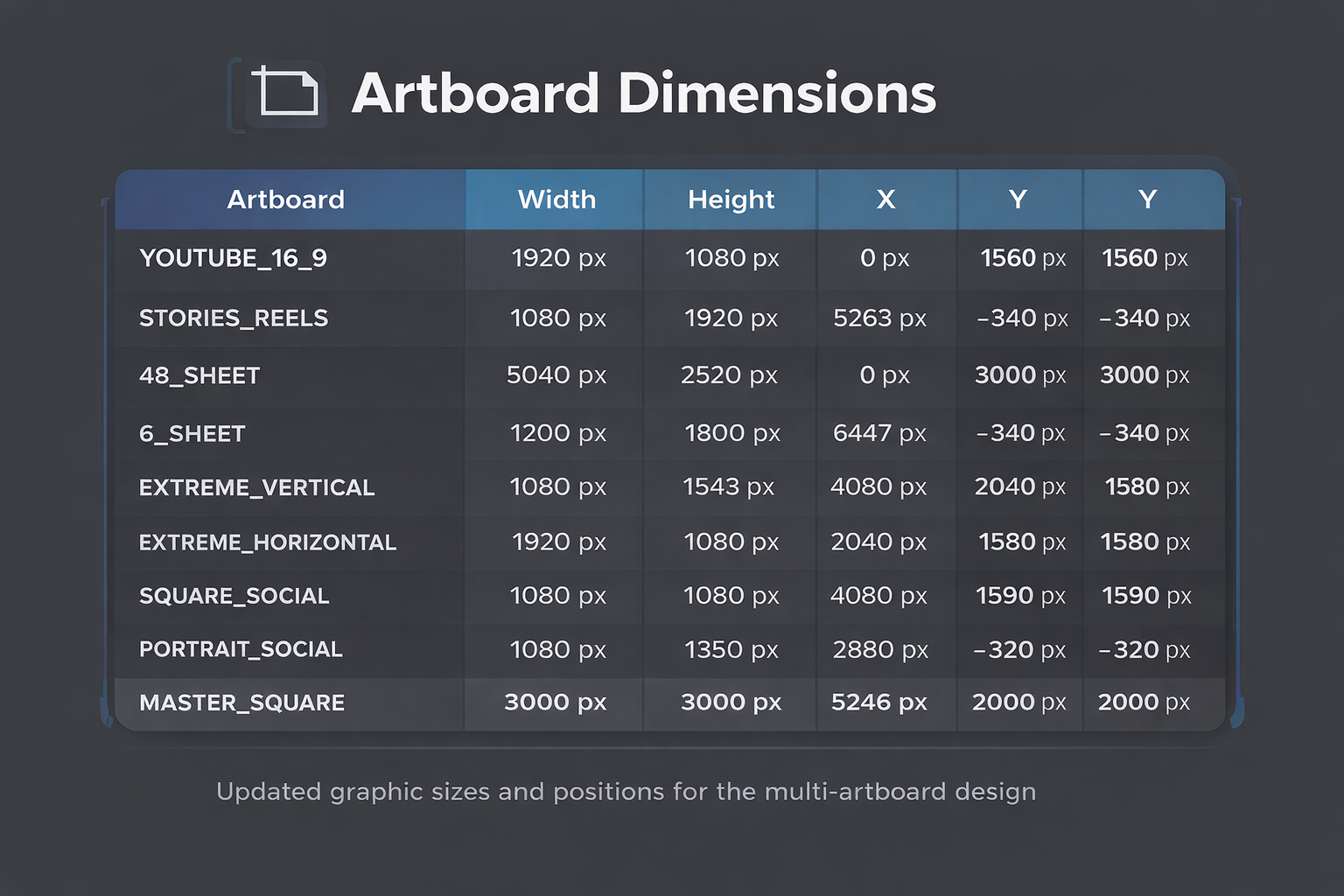
Each artboard has defined dimensions and coordinates within the overall Photoshop canvas.
Understanding the Artboard Layout
Photoshop places artboards using X and Y coordinates, which define the position of each artboard relative to the canvas origin.
X controls horizontal position
Y controls vertical position
This coordinate-based layout ensures that artboards do not overlap and remain organized in a predictable structure.
The design template groups formats logically:
Social formats
Used for Instagram, Facebook, and other platforms.
Square Social (1080 × 1080)
Portrait Social (1080 × 1350)
Stories / Reels (1080 × 1920)
These are placed near each other so designers can quickly compare cropping and safe areas.
Video formats
YouTube 16:9 (1920 × 1080)
Extreme Horizontal (1920 × 1080)
These artboards support widescreen layouts often used in video content or display banners.
Vertical display formats
Extreme Vertical
6 Sheet poster
These are commonly used in digital signage, street posters, and vertical screens.
Large-format advertising
The 48 Sheet billboard (5040 × 2520) represents a traditional outdoor advertising format.
Large-format artboards are usually placed away from smaller social formats to avoid visual clutter in the canvas.
Master design board
The MASTER_SQUARE (3000 × 3000) artboard acts as the primary design reference.
Designers often build the core visual composition here before adapting it to other formats.
This method ensures:
consistent visual hierarchy
consistent typography
consistent product placement
Layer Structure Inside Each Artboard
The template also includes a consistent layer system:
PRODUCT
Contains product imagery or hero visuals.
BG
The background layer for gradients, colors, or textures.
COPY
Text content including headlines and sub-copy.
FIXED_ELEMENTS
Logos, disclaimers, or legal text that must remain consistent across formats.
GUIDES_NOTES
Design guides and annotations for layout reference.
This modular structure makes it easy to maintain design consistency across formats.
Benefits of This Layout System
Using a structured multi-artboard template provides several advantages.
Faster campaign production
Once the template exists, designers only need to update the content.
Reduced design errors
Layouts remain consistent because artboards share the same design logic.
Easier collaboration
Teams can quickly understand how formats relate to one another.
Efficient exporting
Photoshop can automatically export every artboard as individual files.
Best Practices for Multi-Artboard Templates
When creating templates like this, follow a few key principles.
Keep artboard names consistent
Automations and scripts often rely on exact names.
Group related formats
Place social, vertical, and horizontal formats near each other.
Maintain a master layout
Use one artboard as the primary design reference.
Use guides and safe zones
These help ensure text and visuals stay within platform-specific crop areas.
Conclusion
Multi-artboard Photoshop templates are a powerful way to manage complex design workflows. By organizing multiple formats inside a single document, designers can work more efficiently while maintaining visual consistency across all campaign assets.
The system shown in the infographic demonstrates how structured artboard positioning, standardized dimensions, and organized layer groups can transform a chaotic multi-format workflow into a streamlined production process.
For teams producing high volumes of marketing assets, this approach can dramatically improve both speed and consistency in design production.
If you'd like, I can also show you how agencies automate this entire process using Photoshop scripts, so all formats update automatically from the master design.