
Generating functional code from a Figma design
Generating functional code from a Figma design can be achieved using generative AI tools like Figma Make (Figma’s native solution) or by leveraging the Figma MCP Server functionality to connect external AI tools like Cursor.
Here is a step-by-step tutorial covering both methods, preceded by essential preparation steps to ensure the best possible code output.
--------------------------------------------------------------------------------
Part 1: Preparation – Designing for AI-to-Code Success
For AI tools to generate high-quality, reusable code, your Figma design must be structured logically, mirroring how code is written.
1. Adopt Auto Layout: Use Auto Layout for all structured UI elements (buttons, cards, menus, and entire frames) to define spacing, alignment, and responsiveness,,. This provides the AI with implicit instructions on how the HTML/CSS box model should be structured.
2. Use Design Tokens and Variables: Define colors, typography, spacing (using a system like multiples of four or eight,), corner radii, and gaps using design tokens or variables,. This ensures the generated code references consistent styles instead of hardcoded values.
3. Name Layers Clearly: Use clear, descriptive names for all layers, groups, and components (e.g., card-header, primary-button-filled, user-profile-frame),. Consistent layer naming helps the AI understand the design intent and component structure,.
4. Create Components: Turn reusable elements (like buttons, cards, or navigation bars) into Components. This allows the AI to translate them into clean, reusable code components (e.g., React components with proper programming properties or "props"),,.
--------------------------------------------------------------------------------
Part 2: Method 1 – Converting Designs using Figma Make
Figma Make is Figma’s primary generative AI product designed to turn ideas or designs into interactive prototypes or working applications, often referred to as a "prompt-to-code tool",,,.
Step 1: Send Your Design to Figma Make
1. Open your Figma design file.
2. Select the frame or element you wish to convert into code.
3. Click the Figma Menu (F) icon in the top-left corner, navigate to the list of products (or typically locate the feature in your toolbar) and select Figma Make,.
◦ Note: If starting with an idea rather than a design, you can open Figma Make directly and use the "Attach Design" feature later, or simply start with a natural language prompt,.
Step 2: Input Your Prompt (Vibe Coding)
1. Once in the Figma Make interface, you will see a text box to input your prompt.
2. Write a clear, direct prompt defining the output (this is "vibe coding"),. Since you attached a design, instruct the AI on the required output format (e.g., HTML, CSS, interactivity).
◦ Example Prompt: "Create a design layout from my Figma file using HTML and CSS. Use exact variables, colours, and dimensions from the file."
◦ Interactivity/Functionality: For a prototype, you can add commands such as "Make this interactive" or specify actions, for example: "Create a sequence animation where the summary text... animates into position on the Y axis with a zero opacity", or "open this overlay from right to left when I click on the social media cards".
Step 3: Iterate and Refine the Application
1. Figma Make will generate the corresponding code files (e.g., TypeScript, component structures) and display a live, interactive preview.
2. If the output needs adjustments, you can enter follow-up instructions via natural language prompts to refine the design or functionality.
3. For highly detailed changes, use the point and edit tool or directly edit the underlying code files in the code view provided by Make,,.
4. To create a functioning app, you can instruct Figma Make to connect to a backend database (like Supabase) to persist data, allowing it to stand up server code,.
--------------------------------------------------------------------------------
Part 3: Method 2 – Converting Designs using Figma MCP and Cursor
The Model Context Protocol (MCP) server, either the official Dev Mode MCP server or a community-built one, allows external AI coding assistants like Cursor to consume rich, structured design data (variables, components, layout metadata) directly from your Figma file,,,,,.
Step 1: Enable Figma MCP in Cursor
1. Ensure you are using the Figma desktop application and have MCP server enabled in your Figma settings,.
2. In Cursor (the AI-powered IDE), go to settings, locate the tools or MCP section, and install/enable the MCP server for Figma, often by pasting a specific code.
3. This establishes a connection where Cursor can access the deep context of your design file.
Step 2: Extract Design Context and Prompt in Cursor
1. In your Figma file, select the frame or layout you want to convert.
2. Click Share and copy the link to the selected file/frame.
3. Open a new chat in Cursor.
4. Input a descriptive prompt defining the desired code output (e.g., HTML, CSS, or a React component) and paste the copied Figma link below the prompt.
◦ Example Prompt: "Build a responsive web chat widget for a telecom Virtual Support Agent. Requirements: floating launcher button bottom-right; opens a modal chat panel (360px wide desktop, full-screen on mobile). Then incorporate the logic to send messages to backend endpoint POST /chat/message with {sessionId, channel:"web", text}.",,
Step 3: Review and Refine the Code
1. Cursor will initiate the MCP, analyze the design structure (including Auto Layouts and variables), and generate the necessary files (e.g., index.html, style.css) in your project folder.
2. The benefit of this method is that the AI has access to the design file's internal structure and components, leading to higher-fidelity code that adheres more closely to the design system,,.
3. You can review the generated code within the Cursor interface. If issues arise (e.g., incorrect component alignment or missing features), use follow-up prompts to instruct Cursor to surgically fix or modify the code directly.
--------------------------------------------------------------------------------
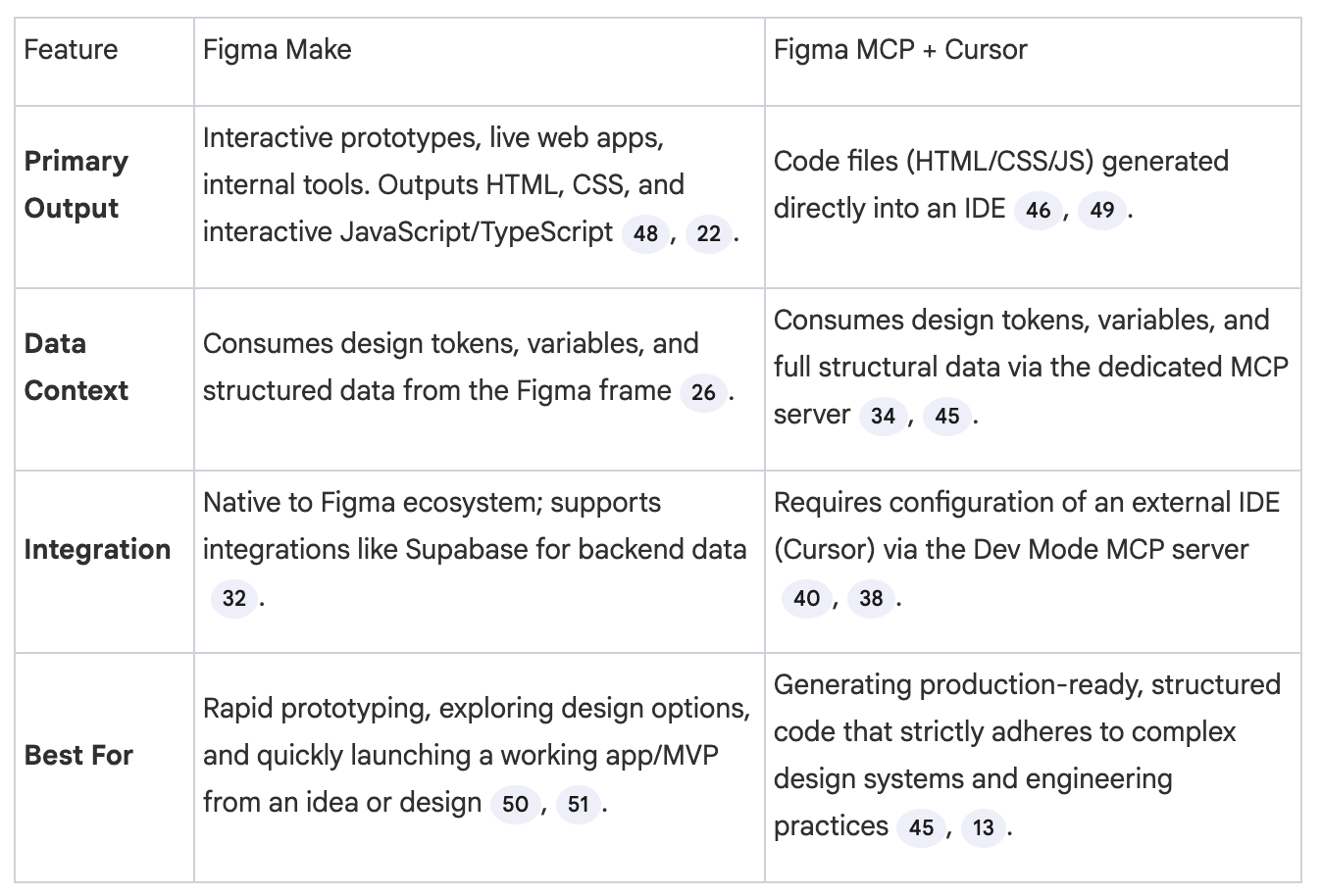
Comparison of Outcomes
Feature
Figma Make
Figma MCP + Cursor
Primary Output
Interactive prototypes, live web apps, internal tools. Outputs HTML, CSS, and interactive JavaScript/TypeScript,.
Code files (HTML/CSS/JS) generated directly into an IDE,.
Data Context
Consumes design tokens, variables, and structured data from the Figma frame.
Consumes design tokens, variables, and full structural data via the dedicated MCP server,.
Integration
Native to Figma ecosystem; supports integrations like Supabase for backend data.
Requires configuration of an external IDE (Cursor) via the Dev Mode MCP server,.
Best For
Rapid prototyping, exploring design options, and quickly launching a working app/MVP from an idea or design,.
Generating production-ready, structured code that strictly adheres to complex design systems and engineering practices,.